Your email address
Step 1 of 5
Create account
Setup Guide
Start here: set up AlchemCharts
Follow these steps in order to create your account, subscribe, complete any required market data agreements, download and install, and log in to AlchemCharts.
Not technical? That's okay. This guide is written for normal computer users, not IT professionals. Take your time. You can stop and ask for help at any step.
Before you begin
Have these ready before starting your setup.
A credit card for your monthly subscription
A few minutes for market data agreements
A Windows computer, or a Mac you plan to set up with Wine
About 15-20 minutes
A stable internet connection
Using a Mac?
AlchemCharts works on Mac through Wine. It is not a native Mac app, so review the Mac setup using Wine guide before subscribing or installing.
1
Step 1
Create your AlchemCharts account
Set up the account that connects your billing, support, market data access, and software login.
Use the email address you want tied to billing, support, market data forms, and app login.
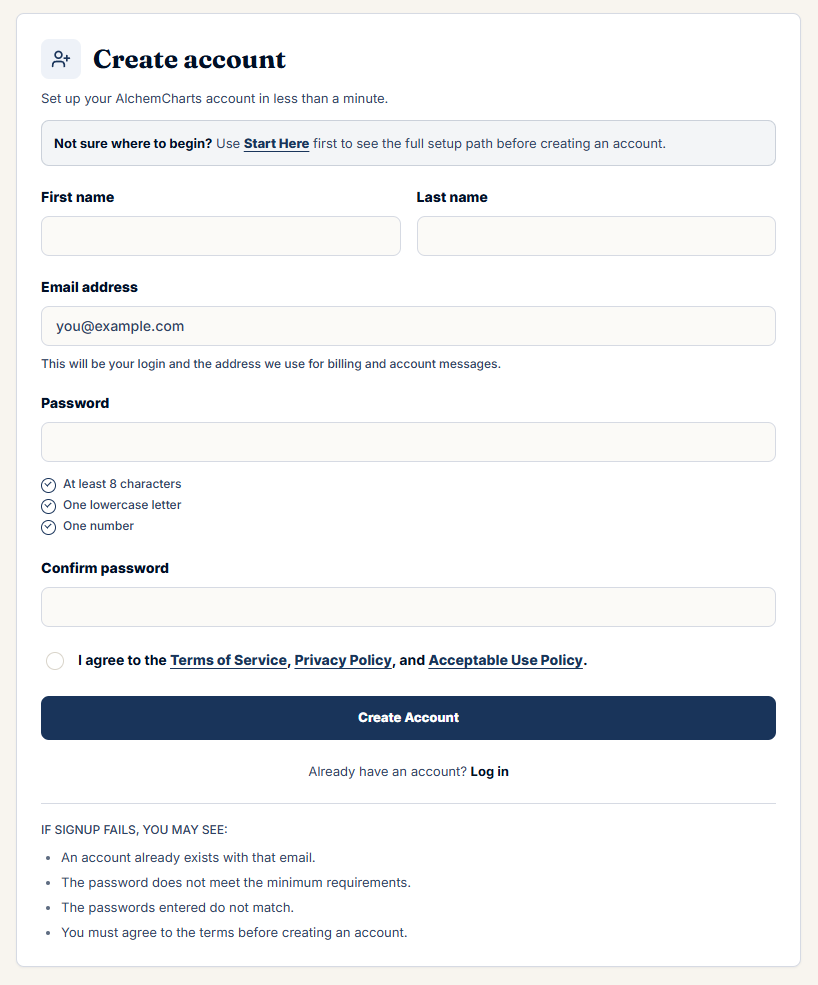
- 1Open the Create Account page.
- 2Enter your name and email address.
- 3Create a password.
- 4Click Create Account.
Avoid duplicate accounts. If you might already have an account, try logging in or resetting your password before creating another one.
2
Step 2
Subscribe to AlchemCharts
Start your monthly subscription after your AlchemCharts account is created.
The subscription includes the market data package required for Market Skills students, including stocks, indexes, options, and futures data.
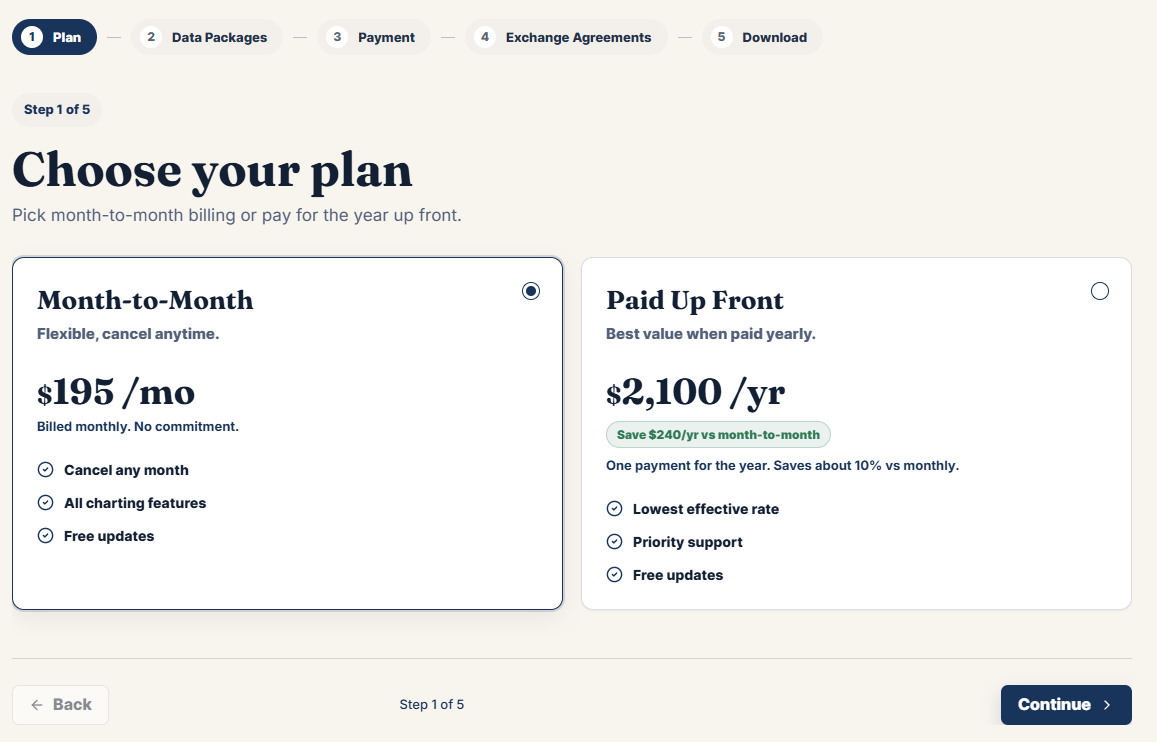
- 1Choose your plan.
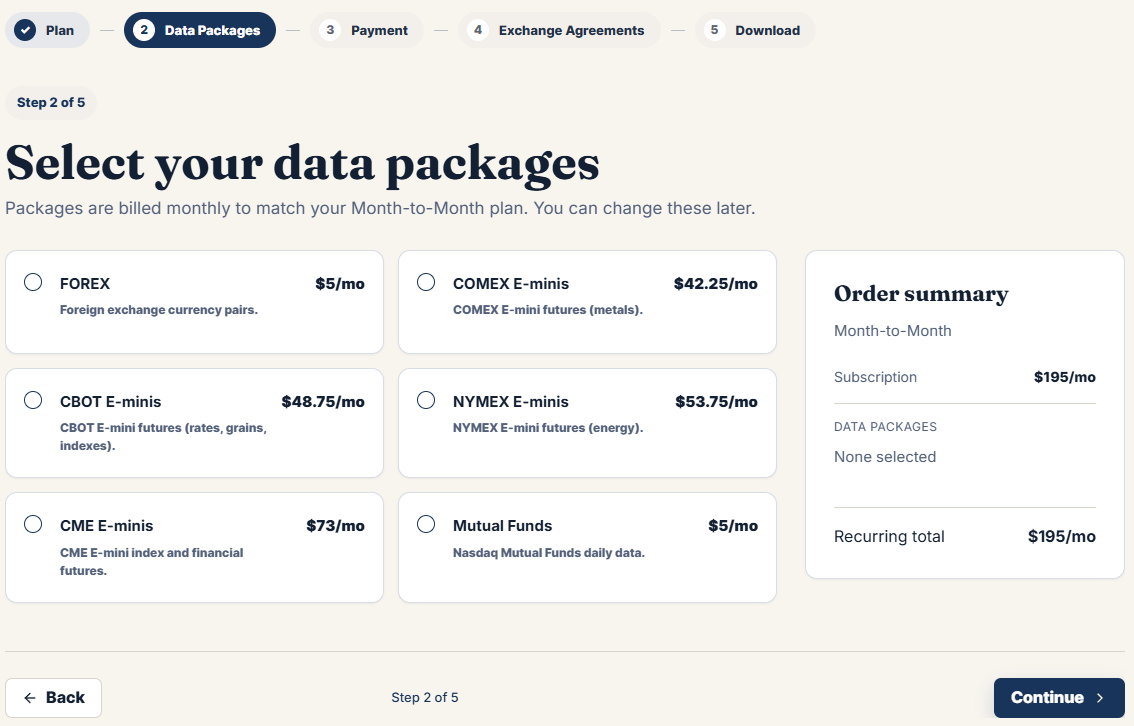
- 2Select optional data packages.
- 3Provide payment information.
Need help subscribing? Contact us before trying multiple times - duplicate accounts can cause login issues later.
3
Step 3
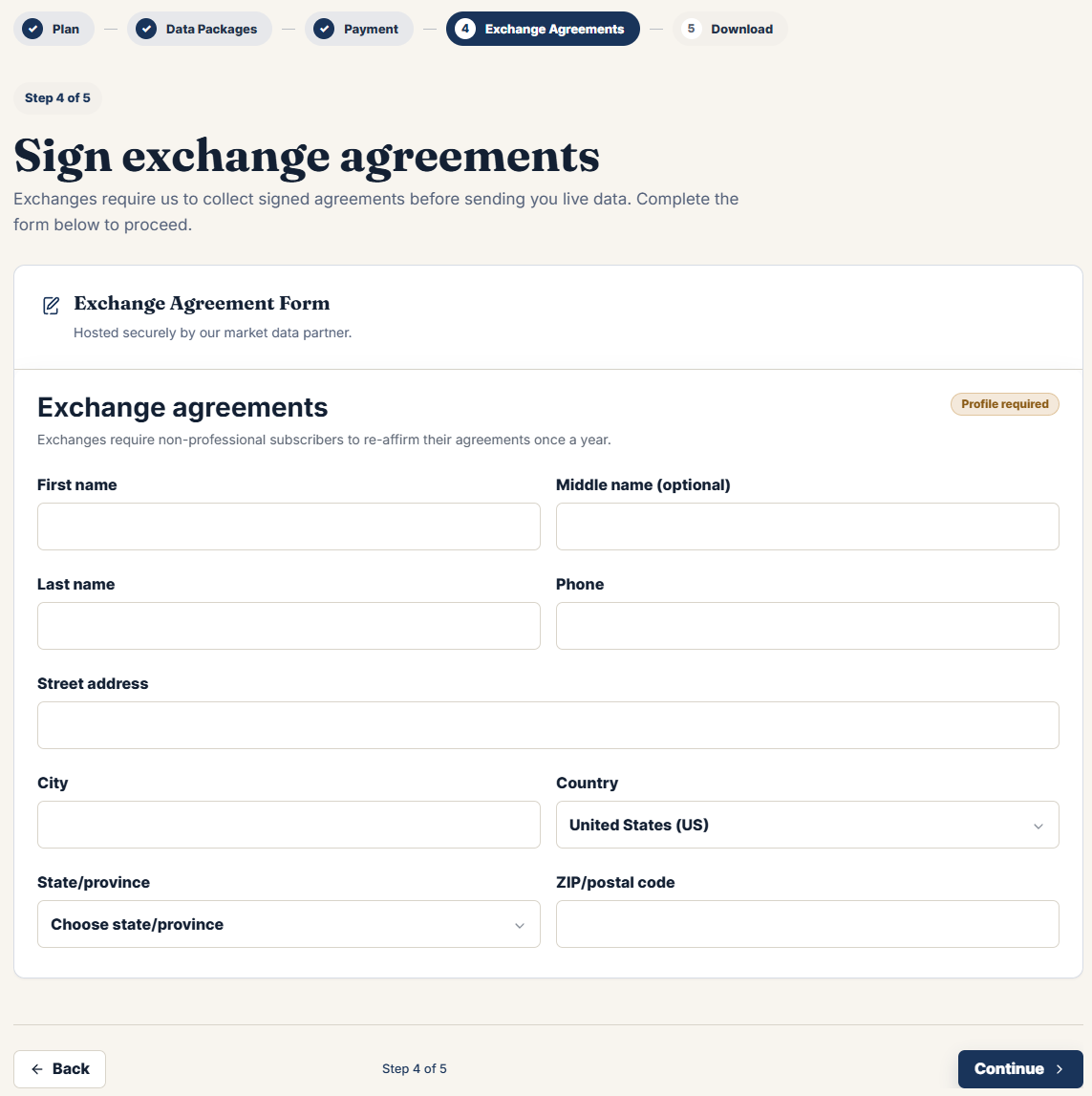
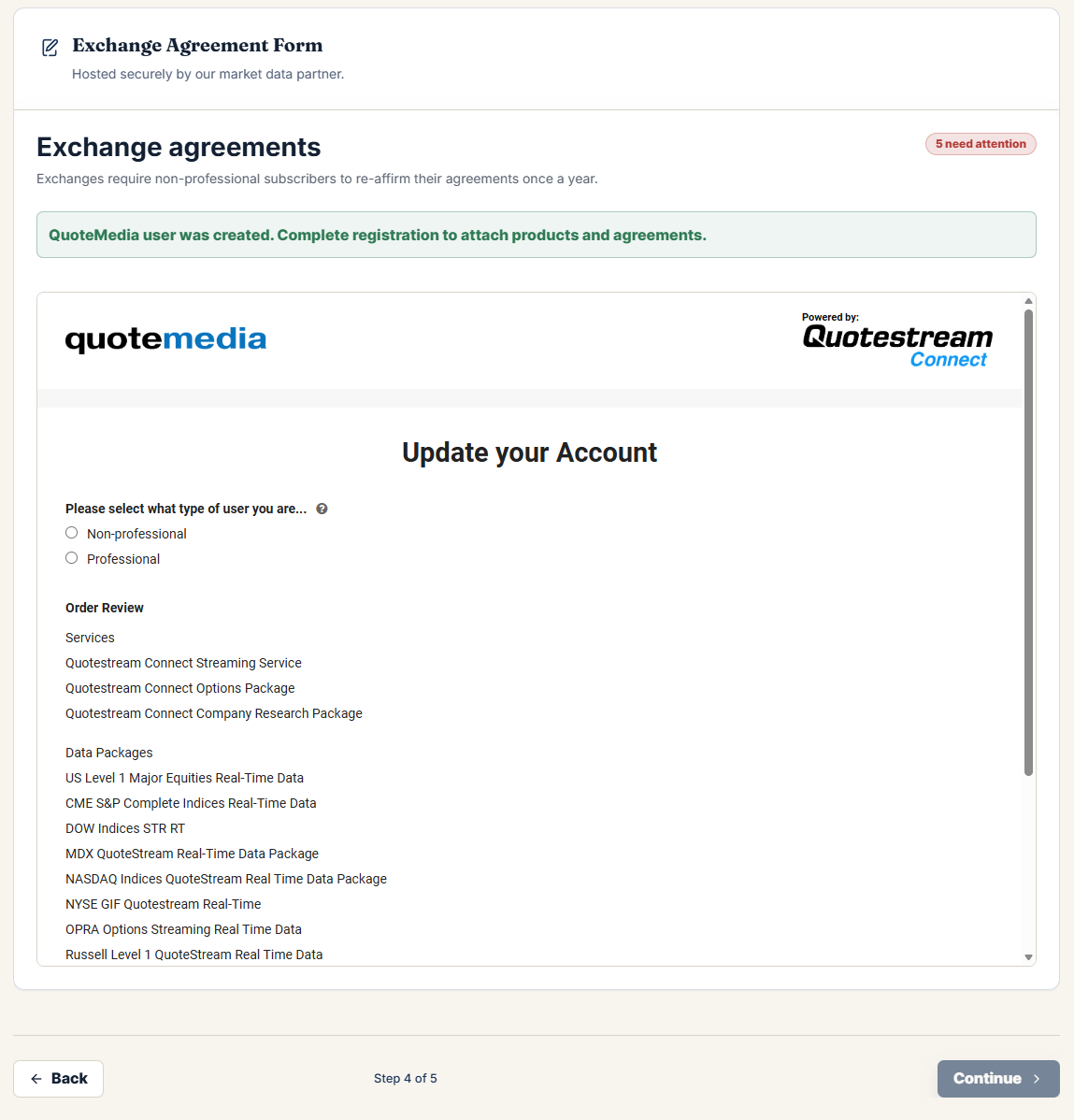
Complete any required market data agreements
Because AlchemCharts includes exchange data, you may be asked to complete market data agreements before all data is active.
These forms are required by the exchanges. They are not optional, and they help determine what data you are allowed to access.
What to expect
- You may see forms asking about your subscriber status.
- You may need to confirm whether you are a professional or non-professional user.
- Your account may not show all data until the forms are complete.
- If you are unsure how to answer, contact us.
Do not guess on exchange agreement questions If you are unsure how to answer, ask for help before submitting. Incorrect answers can affect your data access.
4
Step 4
Download and install AlchemCharts
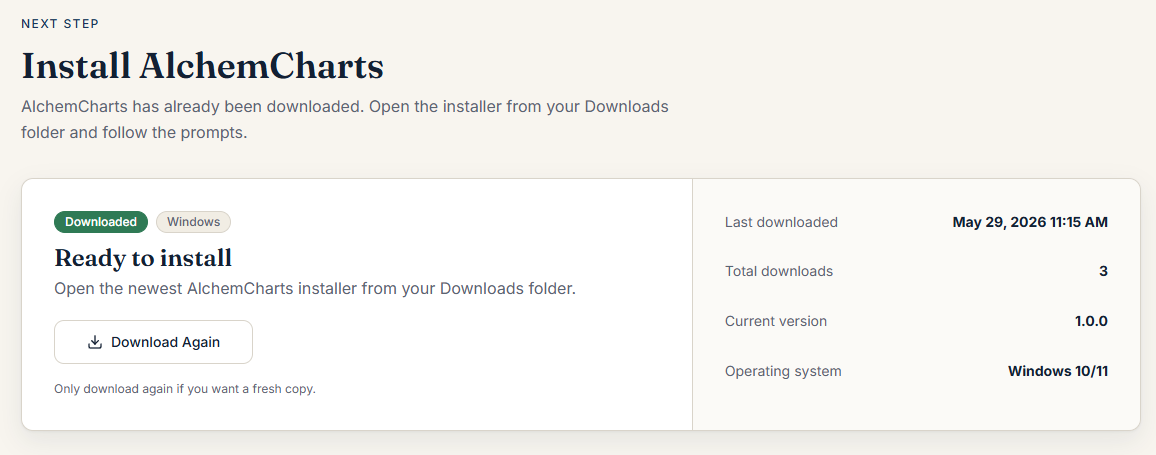
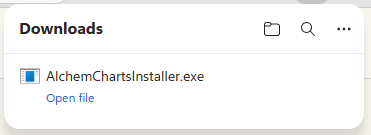
Download the Windows installer, find AlchemChartsInstaller.exe, and launch it to start installation.
Use the account download page to get the current installer. When the download finishes, open it from your browser downloads list or your Downloads folder, then follow the Windows installation prompts.
- 1Click Go to Download Page.
- 2Download AlchemChartsInstaller.exe.
- 3Open the file from your browser downloads list or Downloads folder.
- 4Follow the Windows installation prompts.
If you clicked download but cannot find the file, do not keep downloading it repeatedly. Contact us and we can help you find it.
5
Step 5
Log in to AlchemCharts
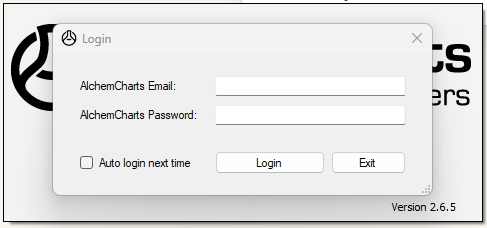
Open AlchemCharts and sign in using the email and password from your AlchemCharts account.
- 1Open AlchemCharts.
- 2Enter your email address.
- 3Enter your password.
- 4Click Log In.
Common issue If your login does not work, check your email address first. Many login problems happen because a different email was used during signup.